The three steps on our homepage are the short version. This guide walks through the full Chrome extension workflow with real product screenshots—from opening a live listing to reviewing AI copy and images on the web dashboard before you publish.
Works on Amazon, Shopify (including custom domains), eBay, and Etsy. New users get 5 free credits; no credit card required.
Before you start
| Requirement | Details |
|---|---|
| Browser | Google Chrome (or Chromium-based browser with extension support) |
| Account | Sign in with Google or email magic link |
| Credits | 5 free trial credits for new users; ~5 credits per typical listing (text + ~2 enhanced images) |
| Page type | A product detail page on a supported marketplace—not cart, search results, or category pages |
Install from the Chrome Web Store, pin the extension, and sign in once. Your session syncs to the web dashboard automatically.
If you're new to AI listing optimization, the workflow is straightforward: the extension reads your live product page, sends the extracted copy and images to the AI, and returns improved versions on a web dashboard where you review before publishing. You never paste product data into a separate tool—the extension handles extraction from the page you already have open. This makes it safer than generic AI chat tools, because the AI sees your real product context (price, brand, images, existing copy) rather than whatever you happened to type in.
Step 1 — Open a live product page
Navigate to any product you want to rewrite. The extension reads what is already on the page—title, bullets or description, price, brand, and gallery images—so you never copy-paste from a CSV or a separate tool.
In this example we use a Shopify storefront (Our Place titanium cookware set). The same flow applies on Amazon Seller Central listings, eBay item pages, and Etsy listing editors.
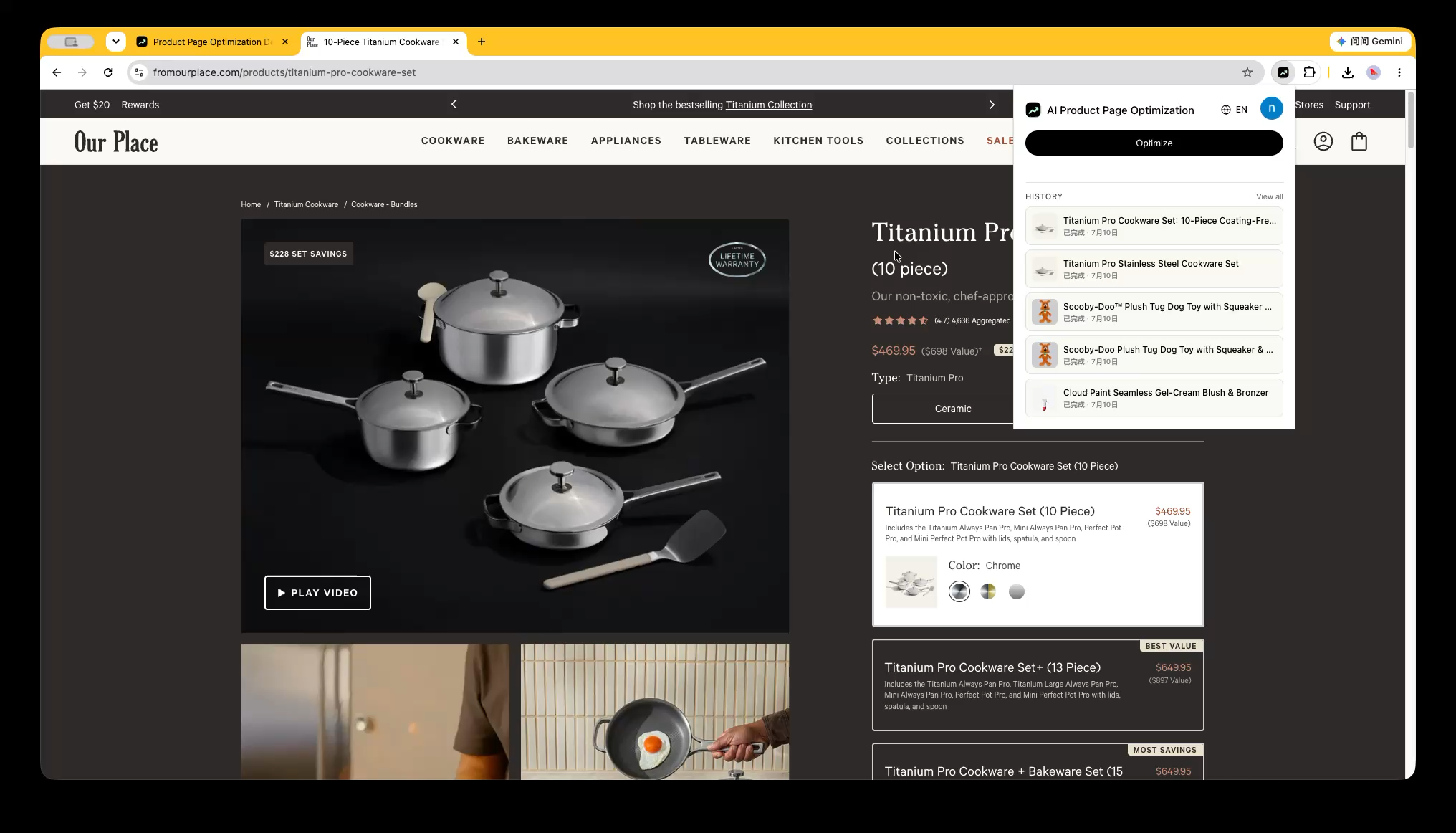
Figure 1: Open the listing you are editing, then click the extension icon in the Chrome toolbar.
Tips
- Wait until images and description finish loading before you optimize.
- If the page is behind a login wall (Seller Central, Shopify admin), sign in first—the extension runs on the page you see.
- Output language follows the detected page language (English or Chinese).
Step 2 — Click Optimize in the extension
Click the black Optimize button in the popup. The extension sends the extracted product data to our backend. Processing usually takes 30–60 seconds depending on image count.
You can close the popup after starting—the job continues in the background. Reopen the extension to see recent tasks under History, or open the full list on the web.
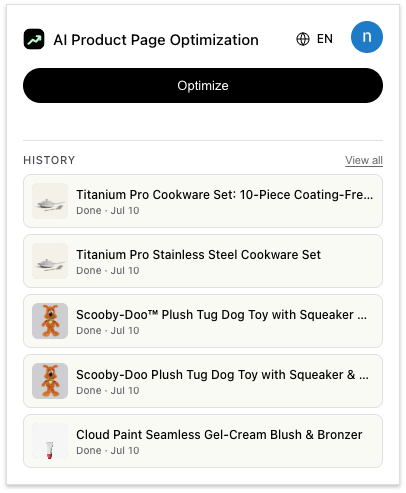
Figure 2: One click starts optimization. History shows completed runs with thumbnails and dates.
What happens behind the scenes
- Extract — JSON-LD, platform selectors, and heuristics pull listing copy and image URLs.
- Rewrite copy — Titles, bullets, and descriptions are rewritten for buyer search intent and platform limits (1 credit when successful).
- Diagnose images — Each image is scored for clarity, background, and hero suitability.
- Enhance or keep — AI enhances or changes backgrounds where needed (2 credits per enhanced image); images that already look strong are marked keep at no charge.
Step 3 — Open the web dashboard to review results
When status shows Done, open the task from History or go to Optimization history. The detail page is a side-by-side review surface—not an auto-publish tool. You always approve before pasting back into the marketplace.

Figure 3: Copy comparison (left original, right optimized) plus image before/after rows.
Copy comparison
The Copy Comparison section shows:
- Original title vs optimized title (mobile truncation and intent-aware rewrites).
- JSON-LD description and product description blocks when the platform exposes them separately.
- Optimized bullet points where applicable (Amazon-style listings).
Use Copy text on any field to paste into Seller Central, Shopify admin, eBay, or Etsy.
Image optimization
The Image Optimization section lists each gallery image:
- Original and Optimized thumbnails side by side.
- AI Diagnosis notes (lighting, background, hero suitability).
- Keep badge when no enhancement was needed—no credits charged.
Download enhanced images if you need the files for upload.
Share and privacy
From the detail page, owners can Make Public to add the case to Explore, or keep results private (default). Unpublish anytime.
Step 4 — Paste back into your marketplace
The extension does not write to Amazon, Shopify, eBay, or Etsy for you. That is intentional—you verify claims, compliance, and brand voice before going live.
- Copy optimized title and bullets/description from the dashboard.
- Replace fields in your seller backend or listing editor.
- Upload enhanced images where you accepted AI edits.
- Save and spot-check on mobile preview.
For platform-specific copy rules, see our Amazon, Shopify, eBay, and Etsy pages.
Credit usage (typical listing)
| Action | Credits |
|---|---|
| Successful text optimization | 1 |
| AI-enhanced or background-edited image | 2 each |
| Image marked keep | 0 |
| Failed subtask | 0 |
A typical product page (one text pass + two enhanced images) uses about 5 credits—exactly the new-user free trial. See pricing when you outgrow the trial.
Troubleshooting
| Issue | What to try |
|---|---|
| Optimize button disabled | Refresh the product page; confirm you are on a supported platform URL |
| Missing description | Some themes hide JSON-LD; scroll to load full description or open admin view |
| Processing stuck | Open the detail URL from History and refresh—the server recovers stale jobs |
| Wrong output language | Page language detection follows visible copy; switch storefront language if needed |
Frequently asked questions
Can I optimize without keeping the popup open?
Yes. Start optimization, close the popup, and check History or the detail link a minute later.
Does the extension work on Shopify custom domains?
Yes. Extraction runs on the live storefront URL (e.g. fromourplace.com/products/...), not only *.myshopify.com.
Will AI publish changes to my live listing?
No. You review on the web dashboard and paste manually. Nothing goes live without your action.
Where is the strategic SEO guide?
For listing strategy (titles, Rufus, GEO, measurement), read How to optimize product pages with AI.
Does the Chrome extension work on Amazon Seller Central?
Yes. Sign in to Seller Central, open the listing you want to optimize, and click the extension. The extension reads the live catalog page, not the backend form—so you see the same view buyers see.
How is this different from using ChatGPT to rewrite my listing?
The extension reads your live page directly—title, bullets, description, images, JSON-LD—so the AI has full product context without manual copy-paste. It also handles image diagnosis and enhancement, which a text chat tool cannot do. You still review every change on the dashboard before publishing.
Next: Add to Chrome — 5 free credits · Free trial details · Pricing